How to Create Subscription Plans & Recurring Billing
Subscriptions are automatic payments that enable you to charge a customer on a regular basis. This feature allows for seamless subscription-based billing within RepairDesk, making it easier to manage and collect recurring payments.
Video Guide:
Benefits of Subscriptions
With the RepairDesk Subscriptions module, you can enjoy the following benefits:
- Charge the registered credit card or direct debit of a customer periodically
- Automatically create scheduled invoices, eliminating the need for manual invoice creation
- Send invoices to customers automatically
- Customers can conveniently pay their invoices online using the Pay Now button in the email invoice
- Customize billing frequencies, dates, and auto-calculate proration for upgrades and downgrades
To set up Subscriptions in RepairDesk, follow the steps below:
Setting up the Subscriptions Module
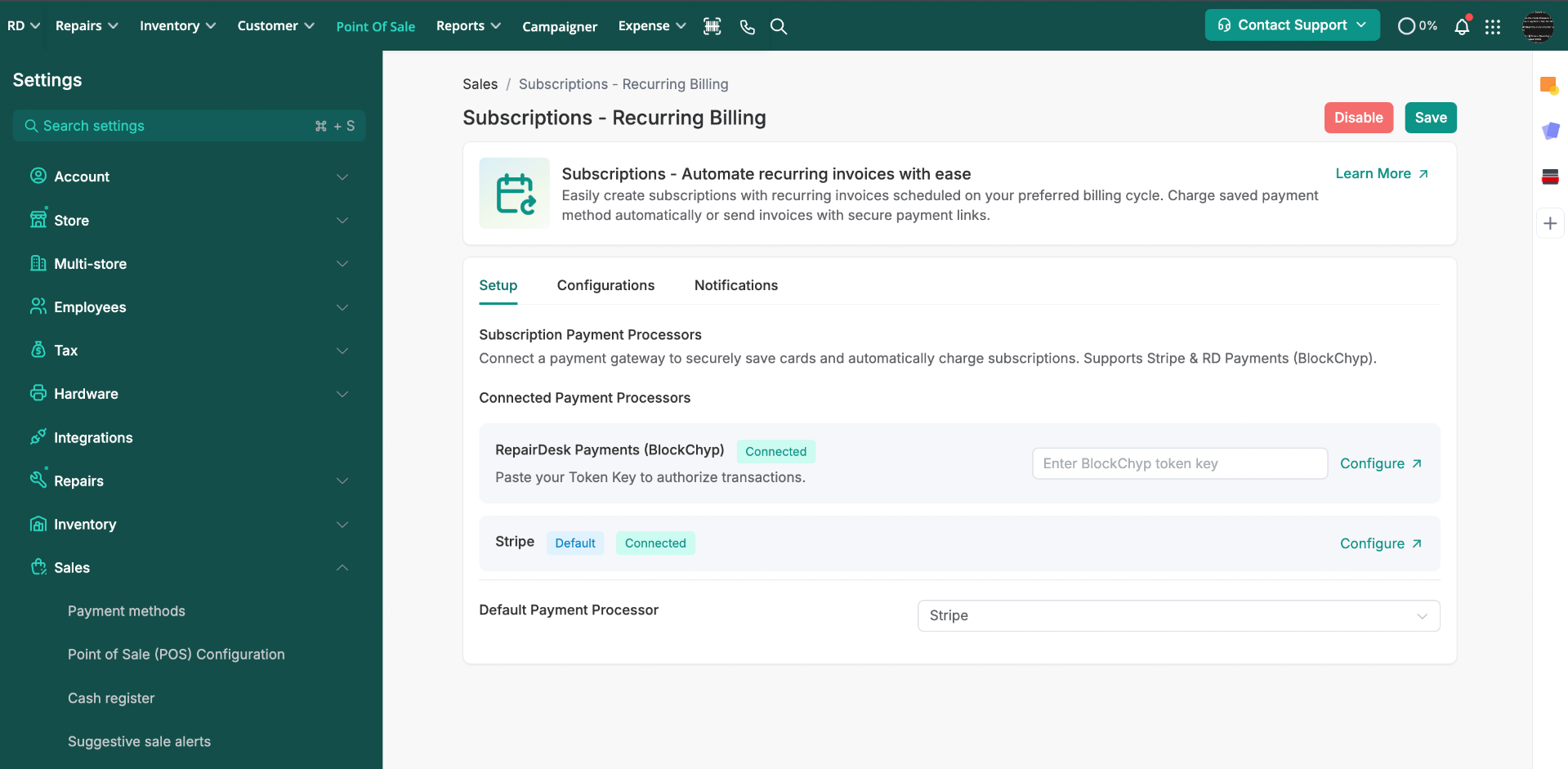
- To enable the module, go to Store Settings > Sales > Subscriptions - Recurring Billing
2. On this screen, you will find various settings such as aligning module payments with RD Pay Integration, setting up triggers for retrying failed payment attempts, and configuring email notifications for customers and admins based on payment status.
Creating Subscriptions and Recurring Invoices
From the top menu, navigate to the repairs tab and click on Subscriptions.
2. You will be redirected to the subscriptions listing page. Here, you can create a new subscription.
3. When creating a new subscription, you will need to provide the following information:
- Customer
- Subscription Name
- Start Date
- End Criteria
- Billing Cycle
- Payment Method
- Customers can add their card details or swipe their card on the RD Pay terminal (for USA only)
- For non-USA users using Stripe, they can set the payment method to Stripe
- Manual payments through bank transfers, checks, etc., are also supported
- Terms and Conditions
- Subscription Line Items.
4. Click on the Create Subscription button to initiate the subscription. The first invoice will be automatically generated and sent to the customer for payment.
5. The recurring invoices will be listed in the invoices section.
6. You can prorate charges when a subscription starts before its first billing date, ensuring customers are charged only for days used instead of a full month.
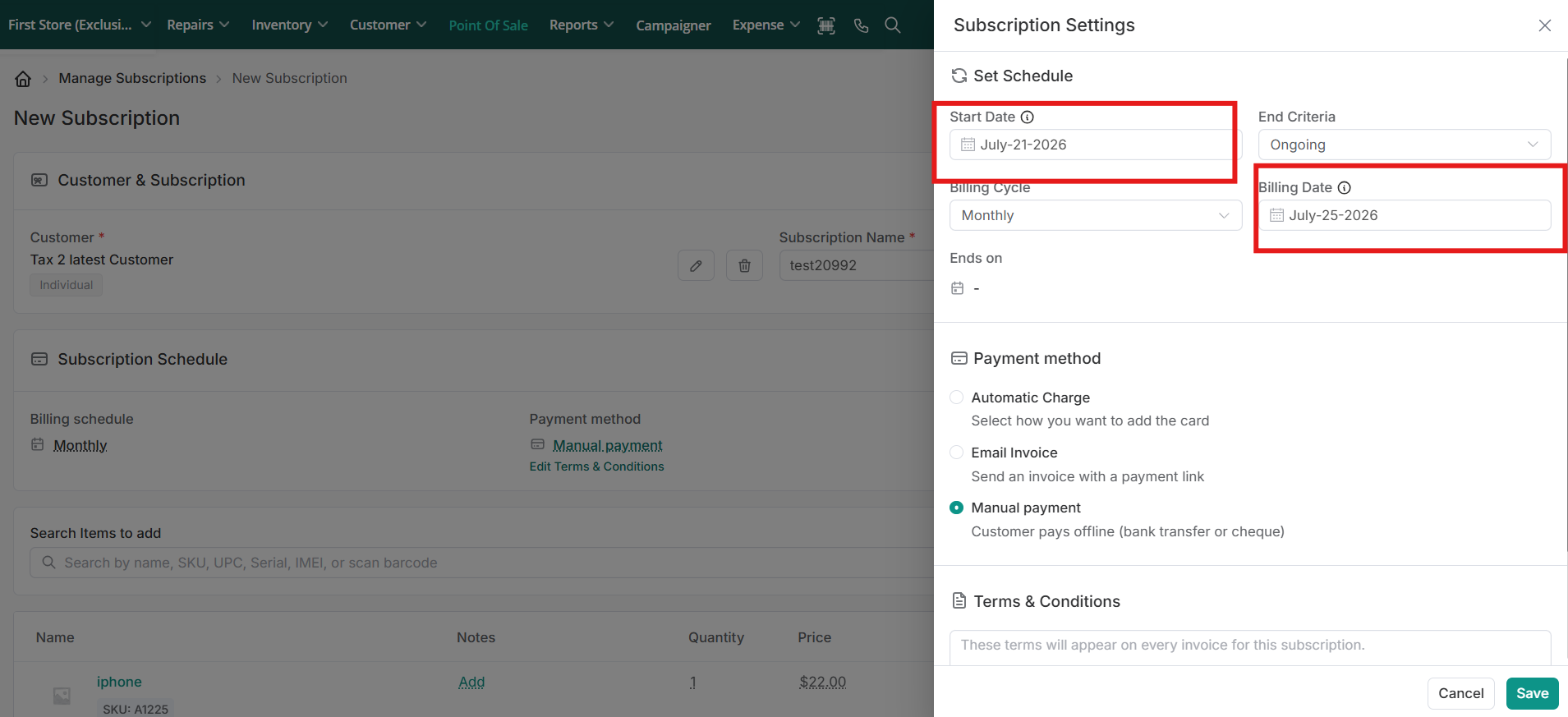
7. You can also prorate when customers upgrade plans mid-cycle or when the first billing is set to a later date than the start date. Downgrades are applied on the next invoice without proration.
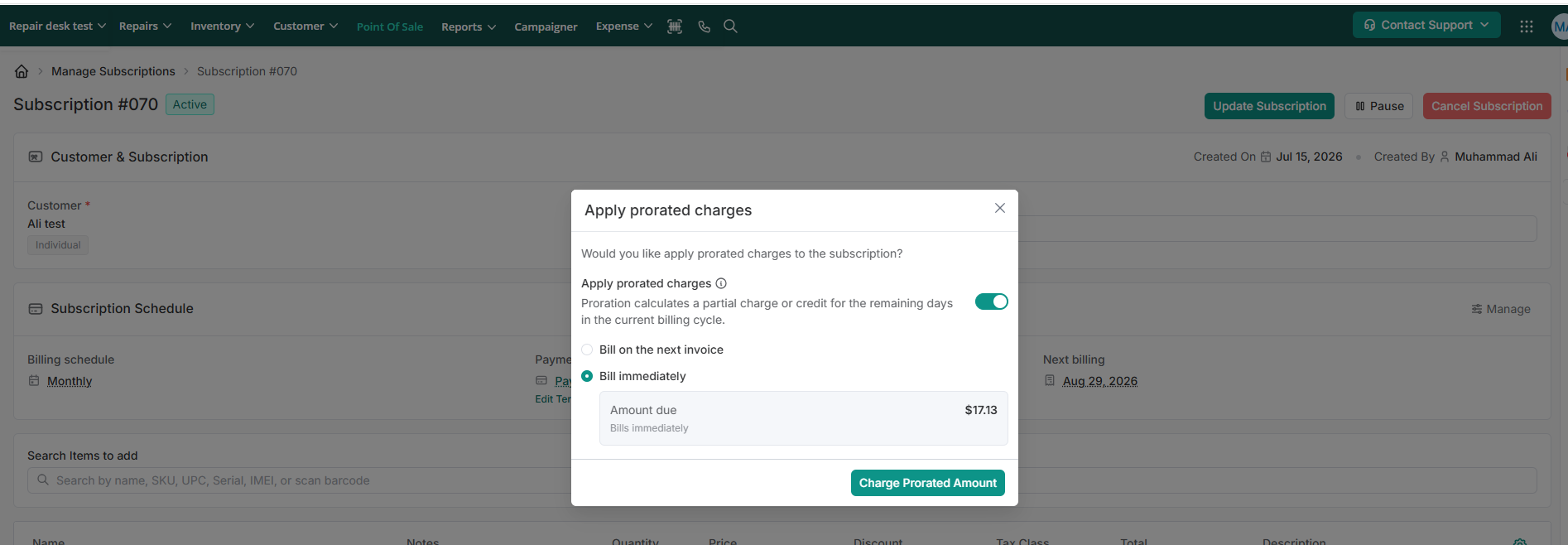
7. You can also prorate when customers upgrade plans mid-cycle or when the first billing is set to a later date than the start date. Downgrades are applied on the next invoice without proration.
Please note that recurring invoices are generated automatically based on the set duration and cannot be created manually.
Memberships
Enabling Subscriptions automatically unlocks the Memberships module under Inventory > Memberships.
Key Features:
- Member Benefits: Offer comprehensive device coverage or discounts.
- Selling & Renewal: Sell memberships via Subscriptions; recurring charges and renewals are managed automatically through the Subscriptions module.
Subscription Plans
Subscription Plans act as reusable templates, allowing you to pre-configure pricing, billing cycles, and included items so staff can quickly sell or apply standard recurring packages.
Setting Up Subscription Plans
- Navigate to Repairs > Recurring Billing > Subscription Plans.
- Click Create Plan.
- Define plan details:
- Plan Name & Description
- Billing Cycle: Set frequency (Weekly, Monthly, Yearly) and date anchor.
- Payment Type: Automatic Charge, Email Invoice, or Manual Payment.
- Plan Contents: Attach Memberships, Repair Services, and/or Inventory Products.
- Terms & Conditions
- Click Save Plan.
Selling Subscription Plans
- From Subscriptions Menu: Go to Subscriptions Listing > Create Subscription and select a plan template to pre-fill subscription details.
- At POS Checkout: Select a customer and click Sell Subscription Plan from the three-dot menu. A popup will display the available subscription plans. For automatic payment methods, only plans with today’s billing date will be displayed, while for manual payment methods, plans with any billing date will be displayed. When subscription plans are offered as upsells during regular product/repair checkouts, all available plans will be displayed. Select a plan (including any attached memberships, services, or products) and process the payment.
Email Notifications
You can notify admins and customers for the following four key billing events:
- Send an Email to Admin When Card Payment is Successful: Keep your administrators in the loop whenever a card payment goes through successfully.
- Send an Email to Admin When Card Payment is Failed: Alert your administrators promptly in the event of a failed card payment.
- Send an Email to Customer When Card Payment is Successful: Reassure your customers by confirming successful card payments through a customized email.
- Send an Email to Customer When Card Payment is Failed: Notify your customers efficiently if there's an issue with their card payment, allowing them to take necessary actions.
Accessing Email Templates
To access and edit the email templates associated with recurring billing events:
- Navigate to the Subscriptions - Recurring Billing Settings Page
- Go to Notification Tab. Find and select the Email Notifications you want. This section houses all the configurations related to email communications for billing events.
- Editing Email Templates: For each billing event, you'll notice a button labeled "Edit Email Content" next to the event name. Clicking this button will reveal the email template associated with that particular event. From here, you can proceed to edit the email template according to your requirements.
- Macros: Incorporate macros into your templates to add a personalized touch, automatically filling in details like customer names, transaction amounts, and dates based on the specific event.
FAQs
Can I view the cancellation date on a recurring subscription?
Yes, you can view the cancellation date on a recurring subscription. When a subscription is canceled, the system will display the date of cancellation on the view subscription page. This helps you keep track of when each subscription was canceled.
Can I see who canceled the subscription?
Yes, you can see who canceled the subscription. Next to the canceled status on the view subscription page, the system will display "Canceled By" followed by the name of the user who canceled the subscription. This information helps you understand who canceled the subscription.
Do I need to subscribe to the enterprise package to use this module?
No, this module will be available for all users.
Can I update/cancel the subscription once started?
Yes, you can update or cancel the subscription anytime.
Can I convert the regular sales invoice to a recurring invoice?
Yes definitely you can do it. After a sales invoice is created, you can hit the Create Subscription option from the Action Dropdown to generate a subscription plan against the invoice.
Cancellation date will also be displayed.
The system will redirect you to the create a subscription page where you can start the subscription.
At the same time, you can also convert a regular sales invoice to a recurring invoice from the Action button against the invoice.
What if I don't have RepairDesk Pay terminal, can I pay recurring invoices through Stripe?
Yes you can. In case if you are not from USA, or dont have RepairDesk Pay terminal, then you can create subscription through Stripe provided that you have set up the stripe integration on your RepairDesk account.
If the strip integration has been set up, you will get the button to add payment method while creating subscription as shown below.
By authenticating the Stripe account, recurring invoices will be paid automatically through Stripe.