How to Switch User Profiles with PIN Login in RepairDesk?
Switch User Profile (PIN Login)
During repairs, employees often need to access their profiles quickly. Instead of logging off and logging in with a different profile, RepairDesk offers a convenient solution: switching user profiles using a 4-digit Access PIN. This eliminates the need for usernames and passwords, allowing employees to switch to their profiles within seconds.
You can now see the currently logged-in user directly from the POS header and securely switch users with mandatory PIN authentication — ensuring only authorized employees can access active sessions.
How to See the Logged-In User
The POS header now displays the logged-in user's profile initials in the top-right corner. Hovering over the initials shows a tooltip with the user's full name.
Clicking the initials opens a dropdown menu that displays:
User details — name, email, and role
Lock Screen — lock the current session
Switch User — switch to a different employee profile
Logout — log out of the current session
Note: These actions have been moved from the 9 dots menu to the header dropdown. You will no longer find Lock Screen, Switch User, or Logout in the 9 dots menu.
How to Switch User Profiles
Here are the steps to switch user profiles:
1. Click on your profile initials in the top-right corner of the POS header.
2. Select "Switch User" from the dropdown menu. This opens the Switch User pop-up.
The pop-up displays:
Currently signed in as — shows the current user's name, role, and store location, along with a Logout button to log out directly from the pop-up
Employee Name — a searchable dropdown to select the employee you want to switch to
Access PIN — the 4-digit PIN for the selected employee
Forgot PIN? — a link to recover your PIN via email (see below)
3. Select the employee's name from the dropdown, enter their Access PIN, and click "Login" to switch.
Important: The Switch User pop-up cannot be closed or dismissed without completing authentication. You must either select an employee and enter a valid Access PIN to switch, or click Logout to log out of the current session. This prevents unauthorized access to active sessions, especially in shared POS environments.
Forgot Your Access PIN?
If an employee forgets their Access PIN, they can recover it directly from the Switch User pop-up:
1. Click the "Forgot PIN?" link on the Switch User pop-up, next to the Access PIN field.
2. RepairDesk will send the PIN to the employee's registered email address.
3. The employee can then check their email, retrieve the PIN, and enter it on the Switch User pop-up to continue.
FAQs
To change an employee's Access PIN, go to Store Settings > Employees > Manage employees. Click on the "Action" button next to the employee you want to edit, then select "Edit." Under the "Roles & Access" section, update the Access PIN.
Yes. An employee can update their Access PIN. To update PIN they should head to Store Settings > Account > Profile and under the Profile Information, they can update PIN in the Access PIN field.
Sure you can! Just head to Settings >> Module Configuration >> POS and enable the trigger for "Require access PIN to complete a sale" and hit Save button. Now whenever an employee is about to make a transaction, RepairDesk will ask the employee to enter his/ her access pin.
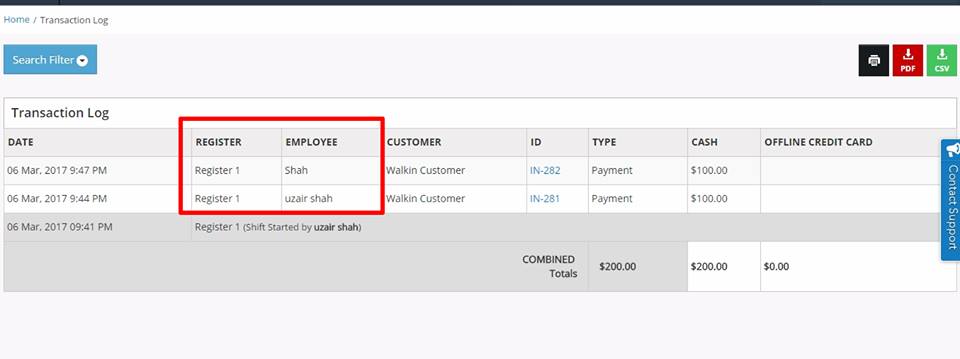
Once you make a transaction it will be considered under same shift but with different user (please see attached).
The pop-up cannot be dismissed without completing authentication. You must either enter a valid Access PIN to switch users, or click Logout to log out of the current session. If you've forgotten your PIN, click "Forgot PIN?" to have it sent to your registered email address.
Clicking "Forgot PIN?" on the Switch User pop-up sends your Access PIN to your registered email address. You can then retrieve it from your email and enter it to continue. If you need to reset your PIN, contact your store admin.