How to Convert / Move Trade-In Item to Serialized Inventory?
1- Go to the manage roles & permissions section, and enable the trigger “Move trade-in item to serialized inventory” under the trade-in drop down as shown following
Settings > Employees > Manage Roles Permissions > Trade-in

2- After enabling the trigger, You need to go to the trade-in section and click on the action drop button against the desired trade-in item from the listing page that you want to move to serialized inventory.

3- Click on the Move to inventory option from the dropdown.
4- After clicking on the move to inventory option you will see two options:
Either you can move trade-in as a new serialized inventory or you can move to an existing serialized item

5- If you want to move trade-in as a new serialized item then you need to click on create a new serialized item
6- After clicking it, you will see the confirmation message
7- You have to click on the yes button, After clicking on it, You will be taken to the product page.
If you want to move trade-in into an existing serialized item then you need to click on Add to existing serialized item
8- After clicking on it, you will see the popup where you have to search for the desired serialized item in which you want to move the selected trade-in

9- After searching for the desired item, you have to select the item to map trade-in into it.
10- After selecting the item from the search, the trade-in and the searched item will be shown

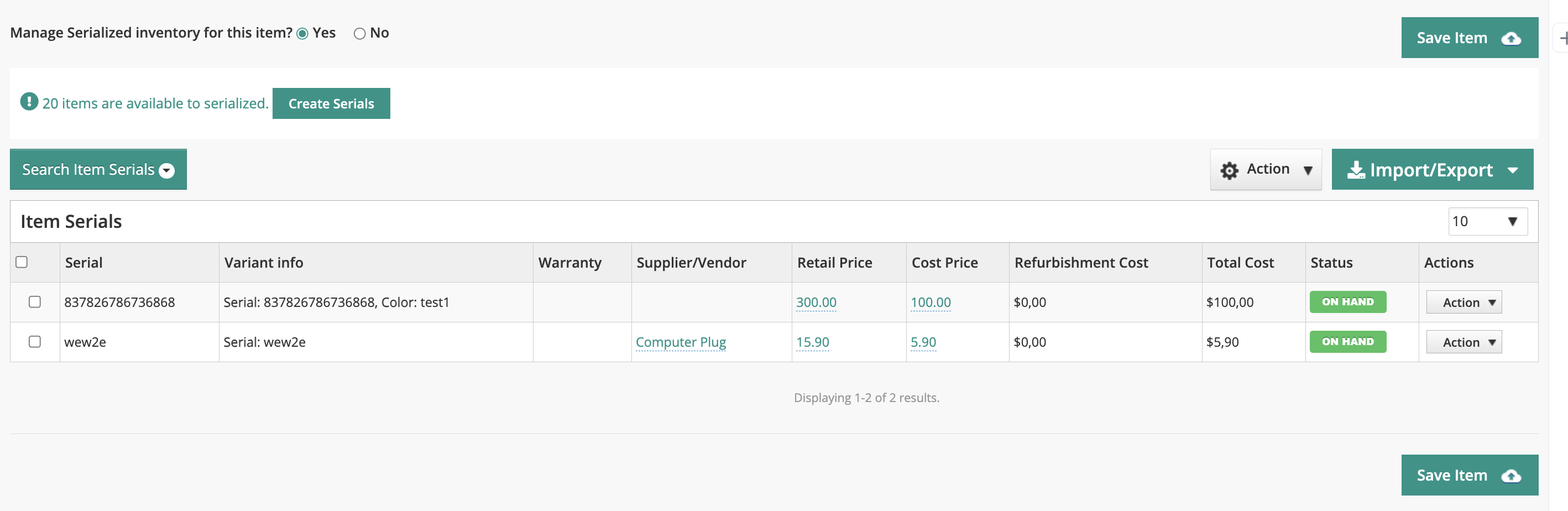
11- The left trade-in item will be moved into a right serialized item. In order to proceed further, you have to click on the proceed button.
12- After clicking on the proceed button, the trade-in will be moved to an existing serialized item and you will be taken to the product page where you will be able to see the moved trade into a serialized listing page
Yes. You can use the Update Retail Price option in the Move to Inventory pop-up to automatically match the Trade-In item's retail price with the price of its linked serialized inventory item.
Once enabled, the updated price will appear on both the Trade-Ins and Inventory pages and in Trade-In Excel exports. Price update logs will also be recorded against both items, making it easier to track price changes.