Blockchyp Terminal Errors Troubleshoot Guide
1. Error: Unknown Terminal
The “Unknown Terminal” error appears when attempting to process a payment at checkout and RepairDesk POS is unable to recognize the assigned BlockChyp terminal.
This issue is usually configuration-related and may occur due to:
- Previously enabled Multi-Terminal Support that is no longer required
- Mismatch between cash registers and assigned terminals
- Employee logged into an incorrect register or an inactive shift
- Terminal name inconsistency across registers
Resolution Steps
Verify Multi-Terminal Support Configuration
If you previously used multiple terminals but are now operating with a single terminal:
- Navigate to:
Integration > Payments > RD Payments > Advanced Configuration - Review the Multi-Terminal Support setting
- Ensure that:
- All cash registers are mapped to the same terminal name
- The terminal name is consistent across all registers
In multi-register environments with only one physical terminal, all registers must reference the same terminal to avoid payment failures.
Verify Cash Register & Employee Shift
- Confirm which employee profile is currently logged in
- Verify that the employee has started a register shift
- Ensure the employee is logged into the correct cash register
- If required, end the current shift and restart it under the correct register
Incorrect register or shift assignment can prevent RepairDesk from sending the payment request to the terminal, resulting in an “Unknown Terminal” error.
2. Terminal Error: Unable to connect with device, please check device network status
This error typically occurs during repair ticket creation or invoice checkout when signature collection is enabled in RD Pay advanced settings, but the terminal is offline or disconnected from the BlockChyp portal.
RepairDesk attempts to communicate with the terminal to capture a signature. If the terminal is unreachable, the process fails and blocks the workflow.
Resolution Options
Restore Terminal Connectivity
- Perform standard No Route to Terminal troubleshooting:
- Confirm the terminal is online in the BlockChyp portal
- Restart the terminal
- Verify network connectivity (Ethernet)
- Once the terminal is online, proceed with ticket creation or checkout and collect signatures normally
Disable Signature Collection
If the transaction does not require a signature or the terminal cannot be brought online immediately:
- Navigate to:
Integration > Payments > RD Payments > Advanced Configuration - Disable signature requirements for:
- Device Check-in / Check-out
- Accessories Sale
- Trade-in
Disabling these options allows ticket creation or checkout to proceed without requiring terminal communication.
3. Terminal Issue: Payment request not sent to terminal
The POS displays a “Processing Payment” screen, but no payment prompt appears on the terminal.
Confirm Terminal Online Status
-
Log into the BlockChyp dashboard
- Verify that the terminal status is Online
- If offline, restore connectivity before proceeding
Clear POS Console Errors
-
Navigate to Checkout > RD Payment
- Right-click anywhere on the screen
- Open Console from inspect tool
- In the Console window:
- Clear existing error messages using the circle icon within the bar
- Check the Network tab for failed or blocked requests and clear them as well.
- Retry the payment after clearing errors
Restart the Terminal
-
Press the reset button located at the back of the terminal
- Allow the terminal to fully reboot
- Retry the payment from RepairDesk
4. Terminal Error: Cloud Relay Terminal Reset
This error typically appears when the checkout process is not completed successfully. RepairDesk received a Cloud Relay Terminal Reset error, which typically indicates an issue with the terminal’s internet connection or a problem on BlockChyp’s end. When this error occurs, RepairDesk attempts to recover the transaction; however, BlockChyp continues to return the same error.
In most cases, the transaction is approved on BlockChyp but not on the RepairDesk side. And if that’s the case, we can record the payment offline in RD using offline payment methods.
5. Deposit Amount Refund Issue
In some cases, a customer may decide not to proceed with a repair after paying a deposit. When this happens, the main repair invoice remains unpaid, and the refund option is not available on the deposit invoice. This prevents the deposit from being refunded directly and may cause confusion during the refund process.
Resolution Options
Refund Through RepairDesk (Recommended)
- Mark the main repair invoice as Paid.
- Open the invoice and initiate a refund.
- The deposit will appear as a line item on the invoice.
- Refund the deposit amount as a partial refund, similar to standard refund handling.
Refund Through BlockChyp Portal
- Log in to the BlockChyp Portal.
- Locate the original deposit transaction.
- Process the refund directly from BlockChyp.
- Record the refund offline in RepairDesk for reconciliation purposes.
- Share the refund transaction ID with the customer so they can track the refund with their bank if required.
6. Batch Deposit Not Received
A batch deposit for a specific date (for example, the previous day) has not been received in your bank account.
Initial Verification
To investigate this issue, the batch status must be verified from the BlockChyp Portal.
Steps to Review Batch Details
- Log in to the BlockChyp Portal
- Search and open your account
- Navigate to Batch History
- Locate the batch for the reported date
- Review the Deposit column and batch status
How to Interpret the Batch Status
- Deposit Amount Displayed
- If an amount appears under the Deposit column within Batch History, the batch has been successfully submitted for settlement by BlockChyp.
- In this case, the delay is typically related to the bank processing time (Federal Bank holiday, etc).
- Unconfirmed / No Deposit Amount
- If the batch shows an Unconfirmed status or no amount under the Deposit column, the batch has not yet been deposited.
- This may indicate that the batch is still open or pending confirmation.
Next Steps
- If the batch is deposited:
- The delay might be due to any bank or local holiday. If there is no holiday, wait till the end of the day and the deposit should be there.
- If the batch is unconfirmed or missing:
- If the batch status is unconfirmed for a day or two, we can raise the case with the BlockChyp team to check for any deposit related issues.
7. Settlement Hold – Amount Not Received / Partial Batch Received
In some cases, you may receive only a partial batch deposit, or that a portion of the expected settlement amount is missing from their bank account. This typically occurs when a settlement hold has been placed on one or more transactions within the batch.
A settlement hold is usually triggered when you process a single transaction that exceeds the approved High Ticket Amount provided during the account onboarding and application process. When this happens, the transaction is temporarily withheld for risk review, while the remaining eligible transactions in the batch are settled as usual—resulting in a partial deposit.
How to Check for a Settlement Hold
- Log in to the BlockChyp Portal
- Navigate to: Merchant Tools > Settlement Hold
- Review the list of held transactions
- Verify:
- Transaction amount
- Hold status
- Date and reason for the hold
What Happens Next
- When a settlement hold is placed, the BlockChyp Risk Team typically sends an email directly to you.
- The email requests supporting documentation to verify the legitimacy of the transaction (for example, invoice, customer authorization, proof of service).
- Once the required documents are submitted and reviewed:
- The hold is released
- The withheld amount is submitted for settlement
- Funds are deposited into the your bank account in a subsequent batch
FAQ
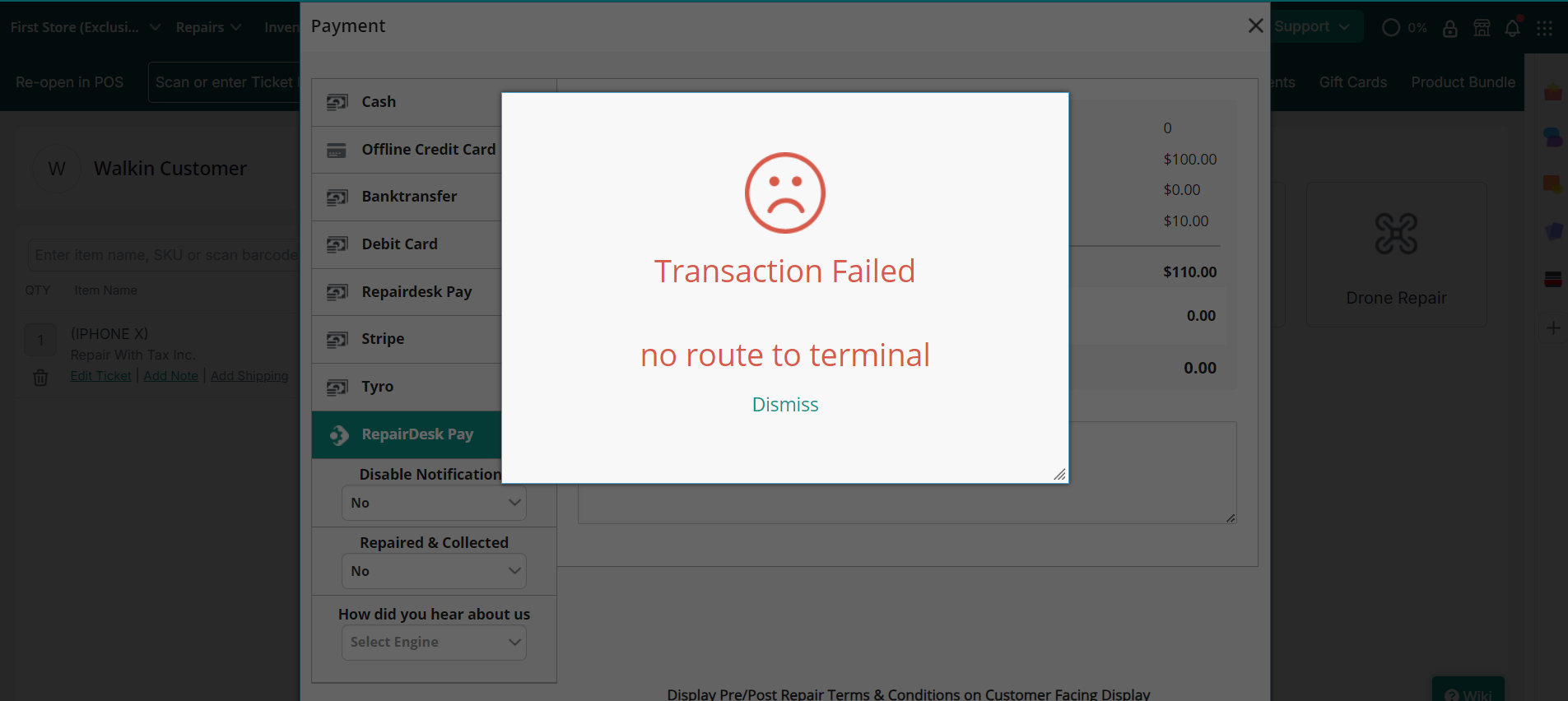
- Check Terminal Status: Login to your BlockChyp account and verify whether the terminal is online or offline.
- If Offline: This indicates an issue with the internet connection. Establish a stable internet connection.
- If Online:
- Restart the Terminal: Unplug the terminal for 5 to 10 seconds, then plug it back in and check if the issue persists.
- Reset the Terminal: Turn the terminal upside down and press the reset button. Once reset, log back into your dashboard and verify if the terminal is online.
- Restart the Router: Restart your router and check if it resolves the problem. You can also try switching to a different Ethernet port to ensure there is no connection issue.
- Check the Terminal’s Internet Connection: To verify the terminal is receiving an IP address:
- Hold the magnifying glass button on the terminal keypad for 3 seconds until it beeps, then press it twice quickly.
- Navigate to Setup > System Config > Network > Next > Wired > Next >Ethernet> DHCP.
- The terminal will display either an IP address or show "Failed to enable DHCP, disconnected." If disconnected, try switching Ethernet ports to see if the connection improves.
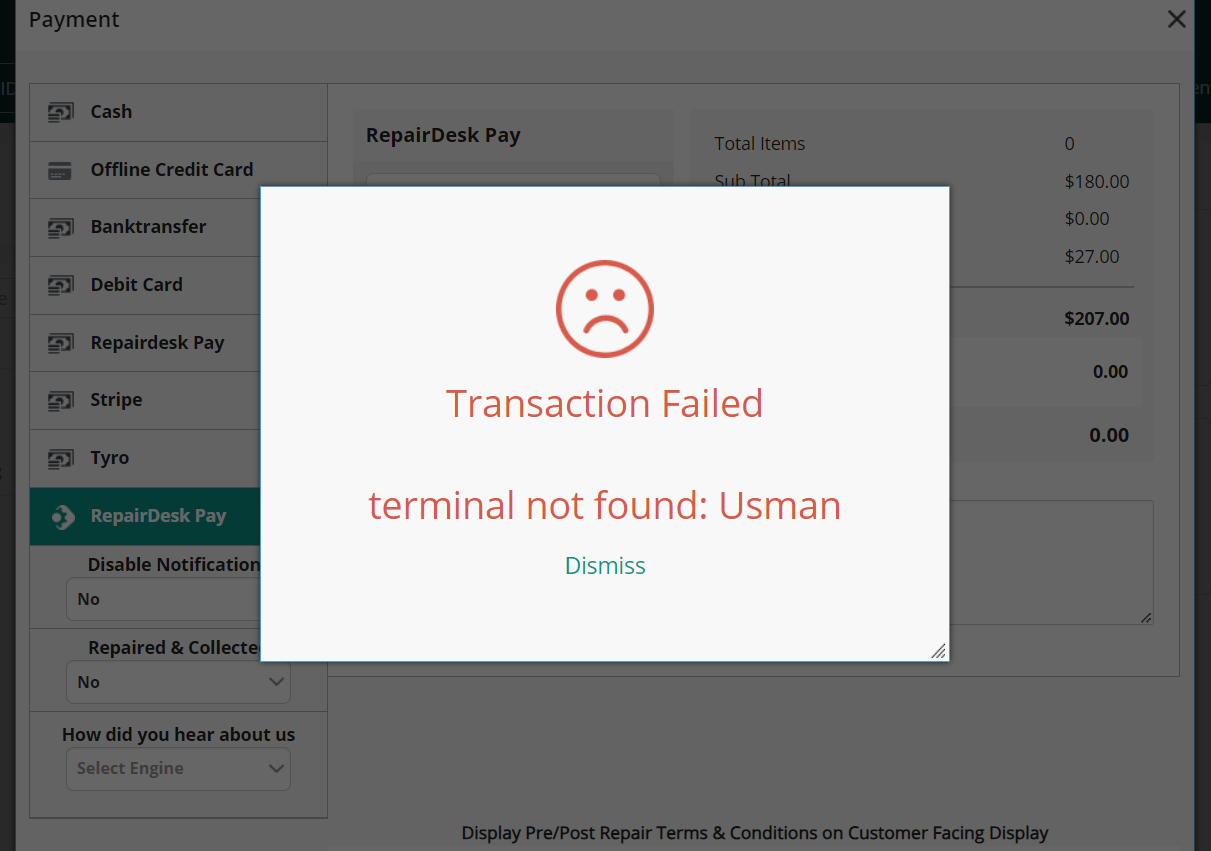
- Try Using Incognito Mode: Open an incognito window, log in to your account, and attempt to process the transaction using the Virtual Terminal.
- Reconfigure the Virtual Terminal: If the issue persists, reconfigure the Virtual Terminal by following these steps:
- Log in to your BlockChyp account.
- From the Dashboard, select "API Credentials" and then click on "Tokenization Keys."
- Generate a new API key and copy it.
- In your RepairDesk account, click on the nine dots at the top right of the screen and select the "Integrations" tab.
- Find the "RepairDesk Payments" tab and click "Connected" beneath it.
- Select the "Advanced Configuration" tab.
- Scroll down to the field beneath "Enable Virtual Terminal", paste the copied key, and save the changes.
- Try to process the transaction again.
- If the Problem Continues: Your IP address might be blocked. If so, please contact RepairDesk Support for further assistance. In the meantime, you can use the Email Invoice option to charge the customer.
- Within One Year of Purchase: Contact RepairDesk Support for assistance with replacing the terminal.
- After One Year: You may be eligible for a promo code to receive a discounted terminal price. Contact RepairDesk Support to check eligibility.
- Go to the top bar and select the "Repairs" dropdown menu.
- Choose "Manage Invoices" and locate the desired invoice.
- Open the invoice, scroll down, and find the Revert button next to the tip amount.
- Click the Revert button and use the Refund option that appears to process the tip refund.
- Log in to your BlockChyp portal.
- Locate the transaction in question (If the transaction is from previous days, check the batch history under the Merchant Tools drop down option).
- Verify whether the transaction amount is correct or if an overcharge occurred.
- If the issue appears on both BlockChyp and RepairDesk - Refund the extra amount charged using RepairDesk Pay to resolve the issue.
- If the issue is only on RepairDesk Invoice - A glitch may have caused the customer to see a double charge or overcharge on their invoice. Update the invoice by deleting the extra transaction or adjusting the overcharged amount through the "Manage Invoices" option.
- Navigate to your terminal’s keypad.
- Locate the three-line button.
- Press the three-line button for 3 to 5 seconds until you hear a beep, Press the button twice quickly.
- Select "Setup" and click "Next."
- Select "System Config" and click "Next."
- Select "Network" and click "Next."
- Select "Enable HTTPS" and click "Next."
- Select "WLAN" and click "Next."
- Select "DHCP."
- Choose your store’s WiFi from the list of available options.
- Enter your credentials to connect to your store’s WiFi.